



The Fremont Area Community Foundation (FACF) is committed to providing our fundholders with the best tools and resources to make critical grants where they are needed most. The Foundation uses an online Portal to provide a secure and easy way through which you can access fund information. Depending on the type of fund you advise, you may be able to view the latest fund balances, make grant recommendations, or review gift history. The information provided below is meant to guide you in learning this system. If you need additional assistance or have any questions, please contact us at 402-721-4252 or info@facfoundation.org.
Logging into the Fund Advisor Portal for the First Time
Navigate to our website at facfoundation.org and select Login on the top of the homepage. Be sure to select the Fund Advisor Portal, not the Board or Scholarship Portal. If your screen looks like this, you are in the right place:
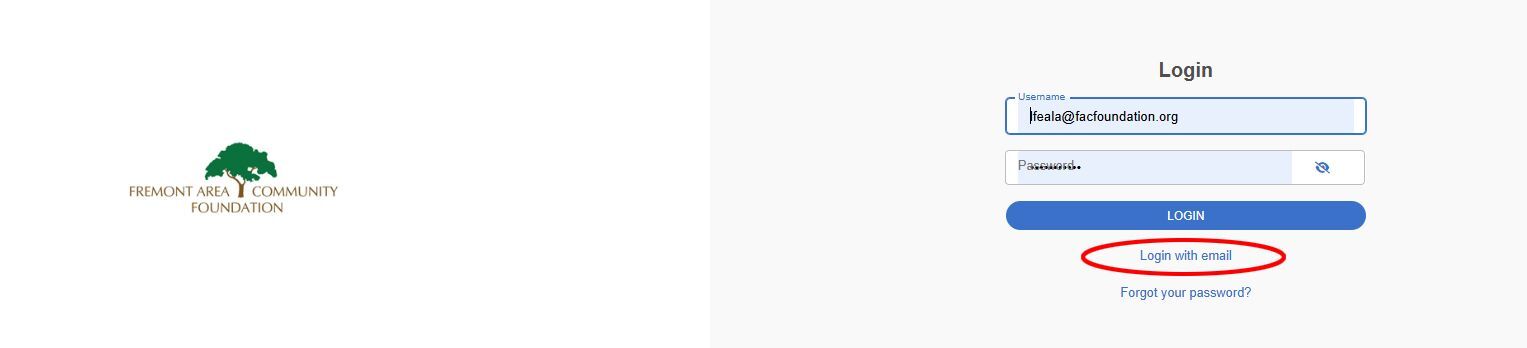
Select “Login with email” (circled in the image above) and enter your primary email address (the email we used to contact you initially regarding portal access). If you are logging in for the first time, enter your email address and you will be emailed a PIN to verify your email. (Note: this code is only active for 6 minutes.) Enter the PIN and you will be logged in.
You can decide to either use your email and receive a PIN to log in every time or set up a username and password. Both options are available on the login page.
If you would like to set up a username and password, click on “Profile” at the top right-hand side of the screen and select “Security” on the left-hand side. You can enter your username and password here. We recommend using your email address as your username. (See below.)

For Individuals Who Advise Multiple Funds at FACF
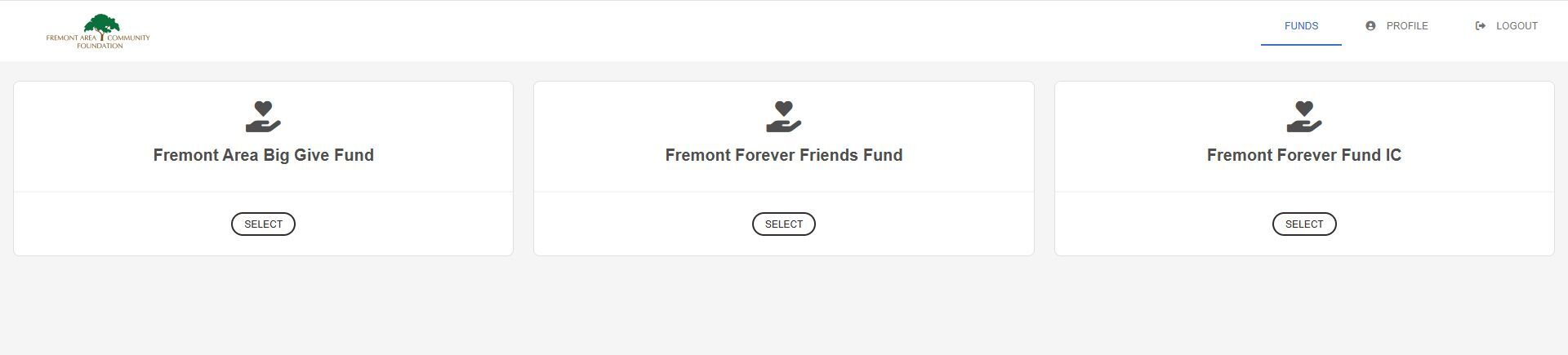
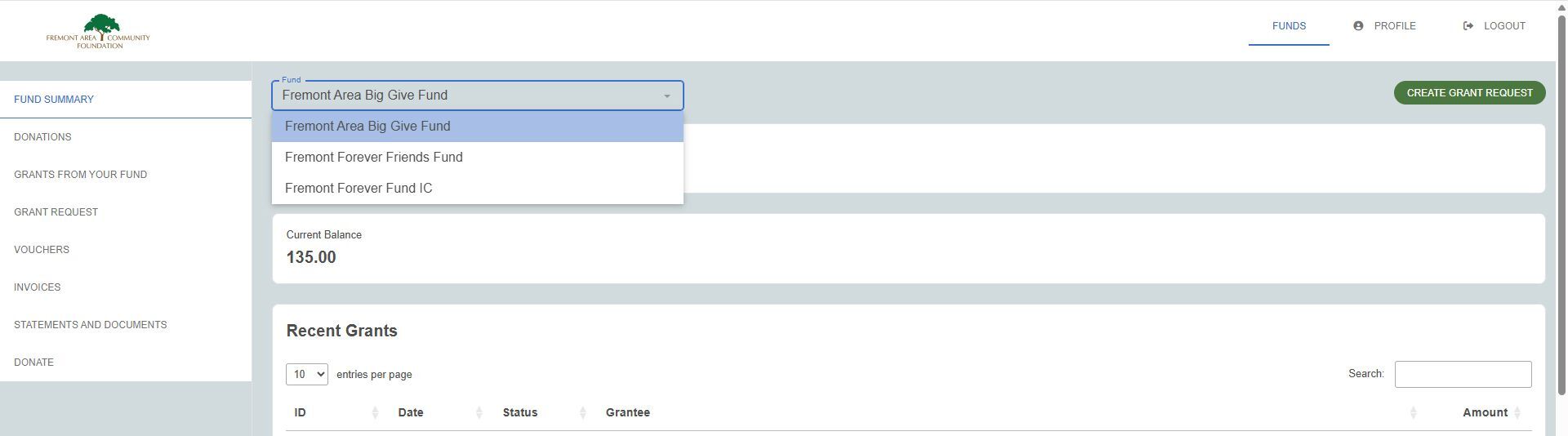
You will see all the funds you advise listed on the home page of the portal. Once you click on one of the funds, you can navigate to the others using the drop-down list (see below). If you are an advisor for only one fund, you will go directly to the homepage for that fund.
TAB SELECTIONS
Once you have logged in, you can select the tabs on the left-hand side of the screen to review the different areas available to you as a Fund Advisor. Following are the tabs you may see on your screen depending on the type of FACF fund you advise:
Fund Summary
This tab provides your fund’s current balance, grant activity and contributions. You may also see graphic displays of your fund’s activity.
Donations
This tab shows the details for each gift received into the fund, if they’re available. Unless the donor has requested to remain anonymous, you will be able to view more detail about each donor by clicking their name. You can also click the green “export” button on the right side of the screen to export the details into an excel spreadsheet if you wish.
Grants from your Fund
The top menu will show three options to learn more about the grants from the fund: Grant Summary, Grant History and Recurring Grants. This tab provides details on all grants distributed from your fund.
- Grant Summary: Lists total cumulative grants by grantee.
- Grant History: Lists each individual grant made from the fund, starting with the most recent.
- You can duplicate previous grants by selecting the blue “Copy” button. This will create a new grant request with the same details as the previous grant recommendation.
- The grant status reflects where the grant is in the Foundation’s disbursement process. "Request status" means that the recommendation has been submitted. "Paid status" means the grant has been mailed to the grantee. Please contact the Foundation if you have any questions about the status of a grant.
- Recurring Grants: Lists any recurring grants associated with the fund. By selecting the individual recurring grant, the option to edit the recurring grant will appear on the right-hand side.
Grant or Voucher Request (Not available for Scholarship Fund Advisors)
Depending on the type of your fund, you will be able to request either a grant disbursement or a voucher payment. Click “Create Grant Request” or “Create Voucher Request”—whichever option displays for you. Then select from the following three options to proceed.
- Previous Grantee or Voucher Recipient: This gives you the option to choose from a grantee you have supported in the past, a Foundation fund you have given to in the past, or other Foundation funds you might like to support.
- Search Grantee: This selection allows you to search for a grantee based on their name, address or EIN. The system will search the Foundation’s database as well as Candid* for organizations containing the keywords that you’ve selected. (*Candid is an information service specializing in reporting on U.S. nonprofit organizations. The more keywords you enter, the better the search results will be.) Results will be displayed from the Foundation’s database followed by Candid’s.
- Enter a Grantee or Voucher Recipient Manually: This selection allows you to enter nonprofit or voucher recipient details manually. You will need to enter the name of the grantee/voucher recipient, address, zip code, and a phone number to forward the request to the Foundation’s staff for review and confirmation.
Please note that this tool does not automatically approve a grant/voucher request. FACF staff must perform its due diligence to ensure the entity is eligible and in good standing.
Regardless of how you choose to submit your grant/voucher, complete all of the information and click the SUBMIT button at the bottom of the page. (Note: if submitting a voucher request, you MUST attach documentation such as an invoice, receipt, estimate, etc.).
Statements and Documents
This tab is available to review current and previous fund statements dating back to September 2020. If you would like to see a statement before that time, please contact FACF.
Donate Tab
The tab allows you to contribute via credit or debit card to any of the Foundation’s 230+ component funds, including your own.
Logging Out of the Fund Advisor Portal
Remember to log out of your Portal. Navigate to the Profile icon in the right-hand corner, then select “Logout” to close the Fund Advisor Portal securely. You will be automatically logged out each night even if you do not remember to log out. If you have created a username and password we recommend saving them in a safe place for your reference.
Locked Out of your Fund Advisor Portal?
Please contact the FACF staff at (402) 721-4252 or info@foundation.org.
Frequently Asked Questions
I want to update my information. Can I do that in the Fund Advisor Portal?
Yes. Click the Profile icon in the upper right-hand corner, then click “Edit Information.” Any changes made in the Advisor Portal will be reflected in the Foundation’s internal records. If you need to update your primary email, please contact the FACF staff at (402) 721-4252 or info@facfoundation.org
I want to update my Fund’s information. Can I do that in the Fund Advisor Portal?
No. If you want to make changes to your fund (such as name, purpose, investment type, etc.) please contact Melissa Diers at (402) 721-4252 or mdiers@facfoundation.org.
How will I know if I submitted a grant or voucher request successfully?
You can check the status of the grant or voucher request in your Fund Advisor Portal on the “Grant Request” or “Voucher Request” tab. You should also receive a grant or voucher request confirmation via email.
How long does it take to process a grant recommendation?
Grant recommendations are typically reviewed and processed within a week.
How will I know when my grant or voucher request has been processed?
All fund advisors will receive an email notification when a grant or voucher is posted and mailed. You can also check the status of a grant in your Fund Advisor Portal.
Why can’t I recommend a grant or voucher?
Not all fund types have the same permissions. Please contact FACF if you have questions.
On what devices may I access the Fund Advisor Portal?
The Portal is compatible with most devices that can access the internet through a browser (e.g., your smartphone, tablet, and PC). However, there is no separate app for the system.
Can I find my tax receipts in the Fund Advisor Portal?
Currently, tax receipts are not available in the Portal. Please contact the FACF staff at info@facfoundation.org if you need a tax receipt.
Is all of the fund balance listed in the Fund Advisor Portal available to be spent?
It depends on the type of fund you have (i.e. endowed vs. pass-through) and balance minimums which vary by fund type. In addition, funds are subject to modest administrative and investment fees which are debited from the fund. If you have questions about your funds, please contact the Foundation staff at (402) 721-4252 or info@facfoundation.org.
